The easy way to sign a PDF, on your own PC.
Free to use, with no account and no upload. Sign a PDF the way you'd sign paper — and nothing leaves your computer.
Runs on any Windows PC, old or new. Quick and simple to set up.
QuickSign speaks your language.
Available in 23 languages. QuickSign uses whatever language Windows is already set to. Arabic and Hebrew read right to left, the whole way through.

- English
- Deutsch
- Français
- Español
- Italiano
- Nederlands
- Português
- Polski
- Русский
- العربية
- עברית
- Türkçe
- Čeština
- Українська
- Ελληνικά
- ไทย
- Tiếng Việt
- Bahasa Indonesia
- Svenska
- 日本語
- 한국어
- 简体中文
- 繁體中文
Every language is available now, and each one keeps improving with future updates.
Sign a document in three steps.
QuickSign is easy-to-use PDF signing software. You set up your signature once; after that, signing a form takes about a minute — draw, place, save.
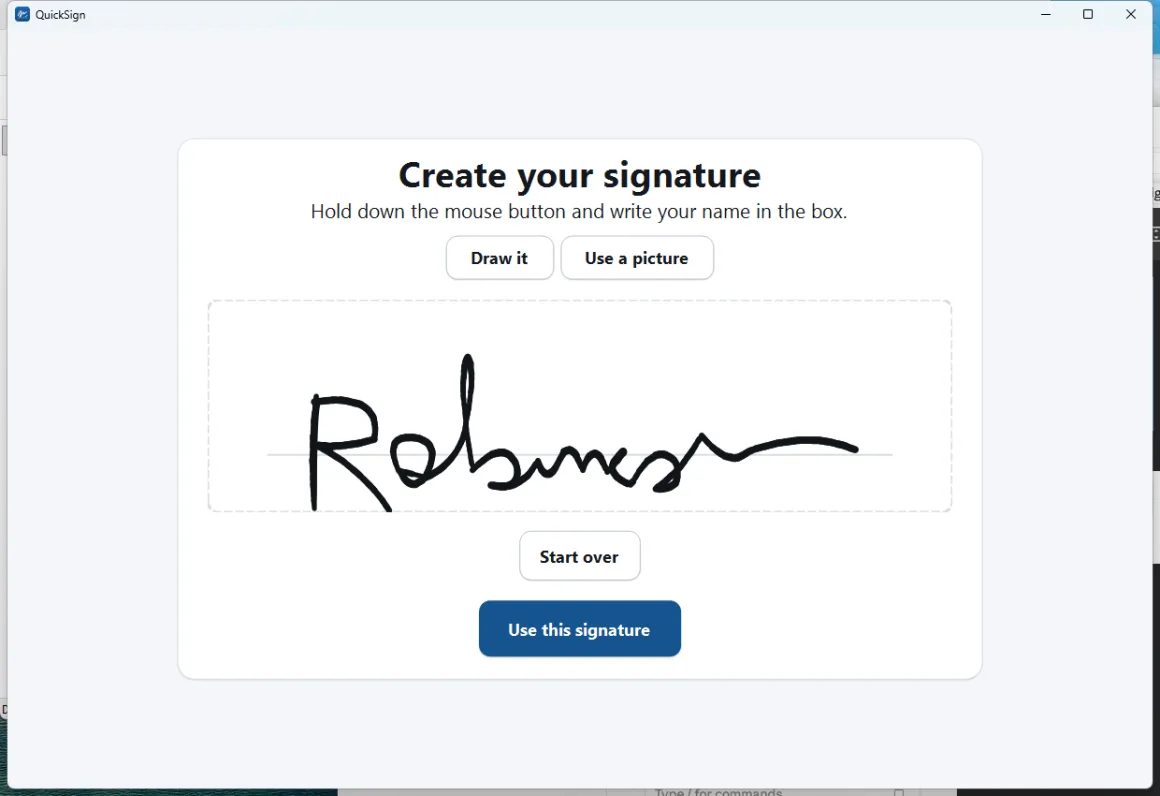
Make your signature
Draw it with a mouse, trackpad or touchscreen — the pen thins as you move, so it looks handwritten. Or import a photo of a real one.
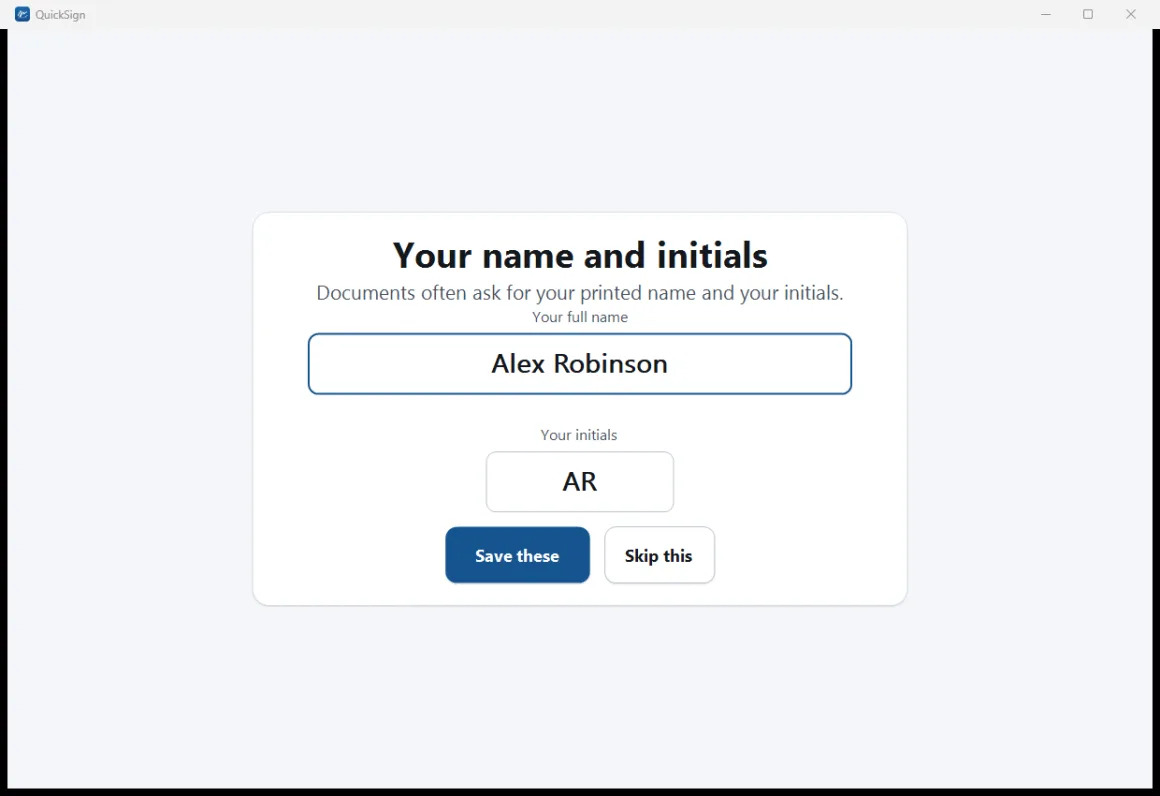
Add your name and initials
Captured once and remembered. Forms often ask for all three. Both are optional and can be skipped.
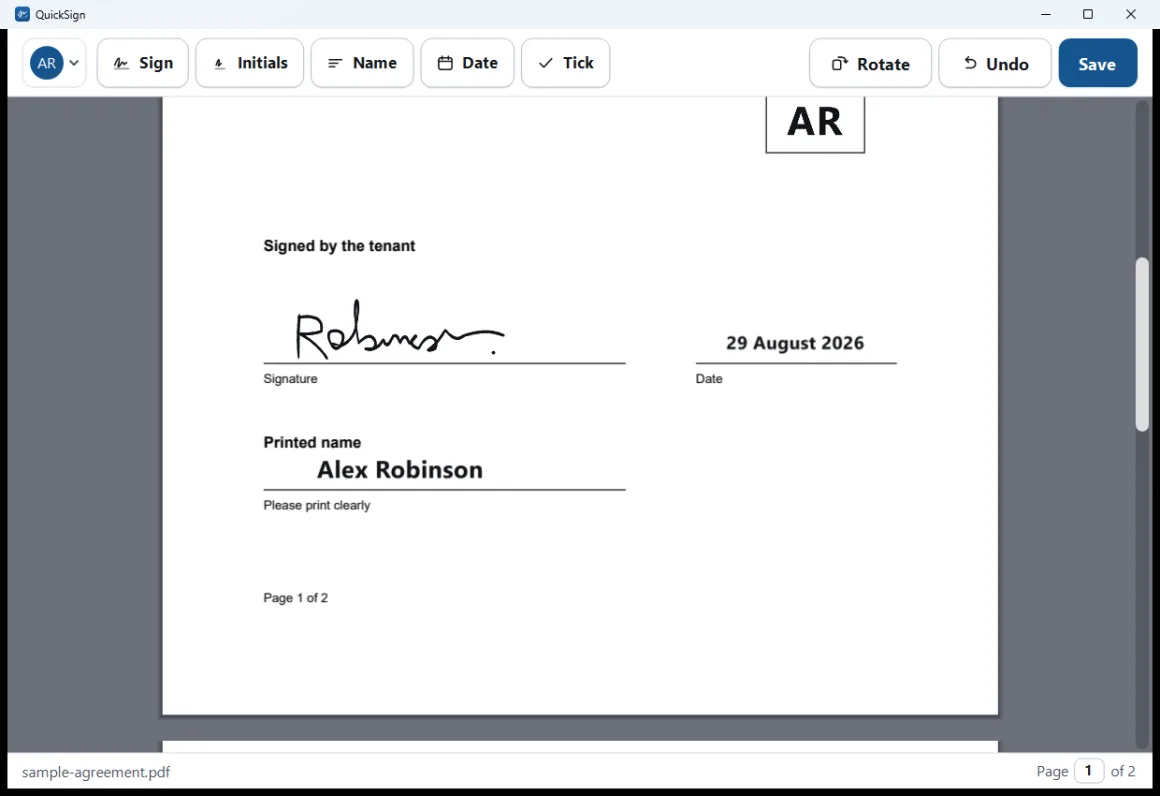
Place it and save
Click where each mark goes, drag to adjust, then save. QuickSign writes a new file — your original is never touched.
Your document stays on your machine.
Most tools ask you to upload a private contract, medical form or passport copy to a website you know nothing about. QuickSign does the work on your own PC instead.
Your document never leaves your computer.
QuickSign has no way to send it anywhere. You could switch the internet off completely and it would work exactly the same.
No account, no upload
There is nothing to sign up for and nowhere to log in. The document is never sent anywhere.
Nothing to figure out
No settings to wade through and nothing to configure. Open a PDF and the tools you need are right there in front of you.
Runs on old machines
Windows 7 support is real and tested on a genuinely old PC — not just in theory. Most other PDF tools can't run there at all.
Never touches your original
Saving always writes a new file next to the original. That's structural, not a setting you could get wrong.
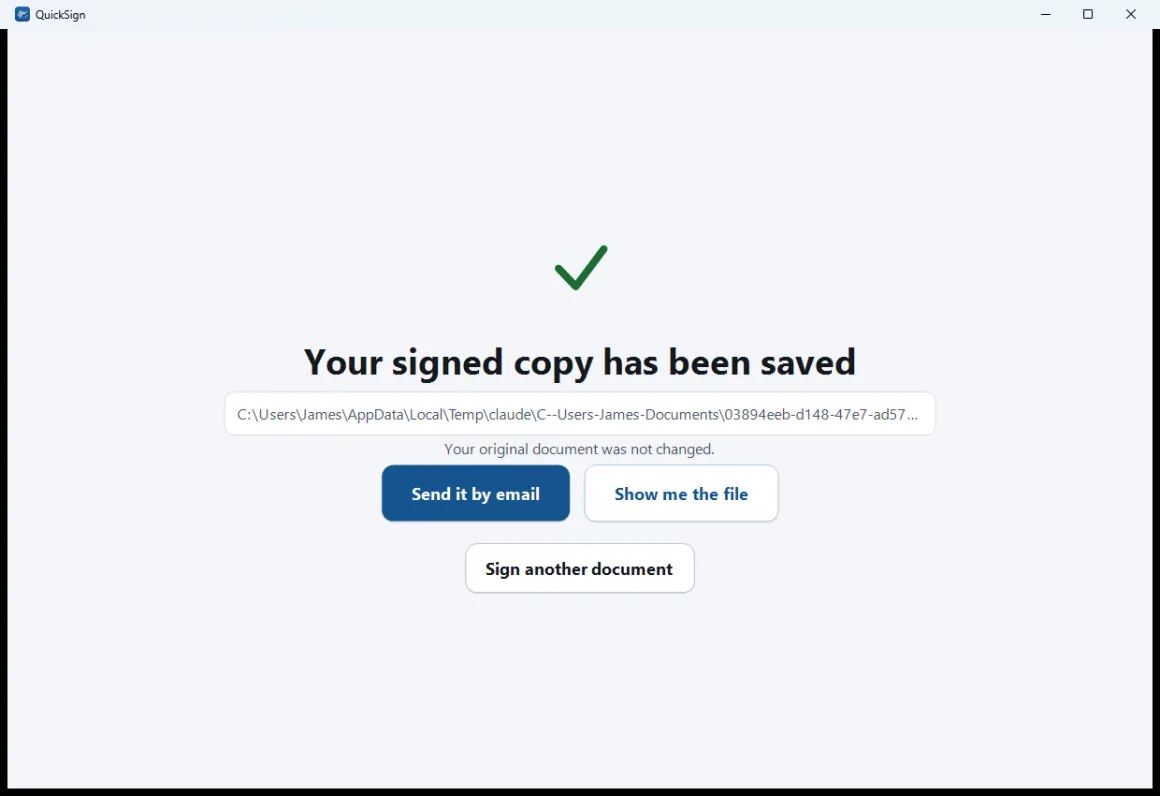
Saved as a new file. A plain PDF anyone can open.
QuickSign suggests a sensible filename beside the original and tells you plainly that the original was not changed. It can show you the saved file in Explorer, or open a pre-written email with the file in front of you to drag in.
The result is an ordinary PDF. The marks are baked into the page and open normally in any reader — exactly like printing, signing and scanning, but without the printer.
Five marks, placed where you want them.
QuickSign is a signing tool, not a PDF editor. Everything it does is aimed at getting a form signed and sent back.
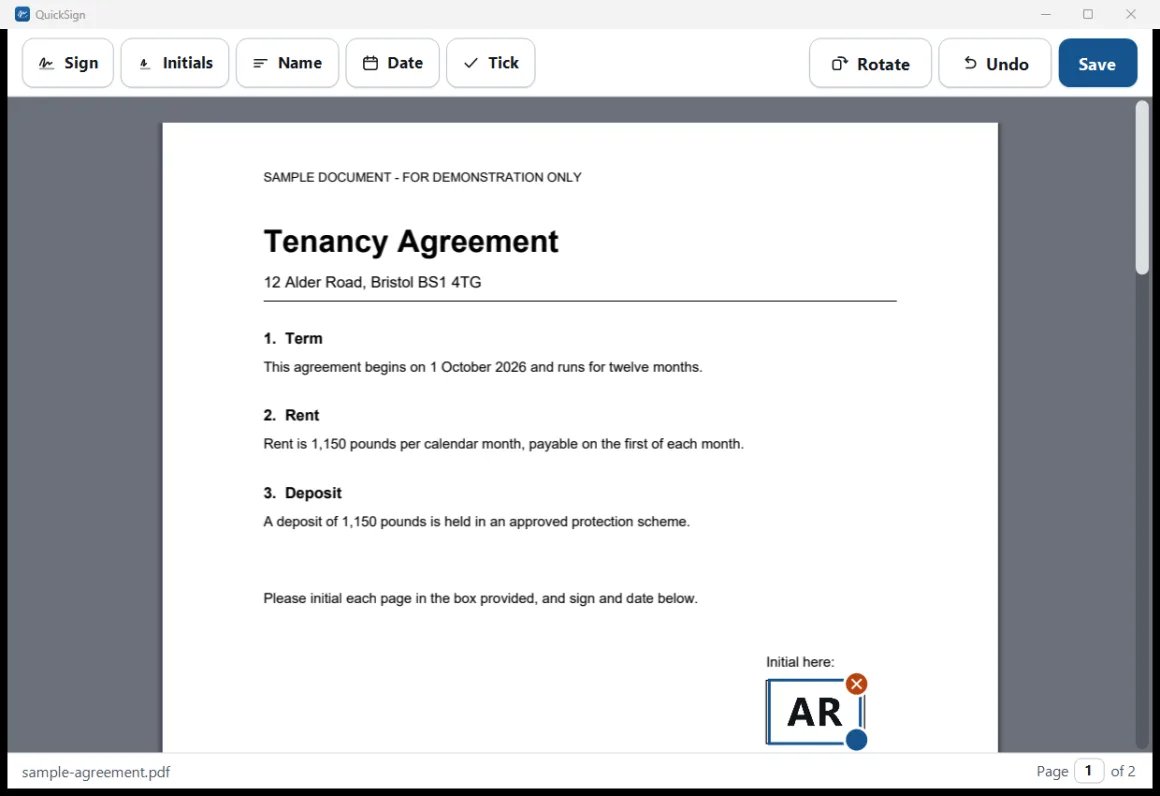
Place and adjust
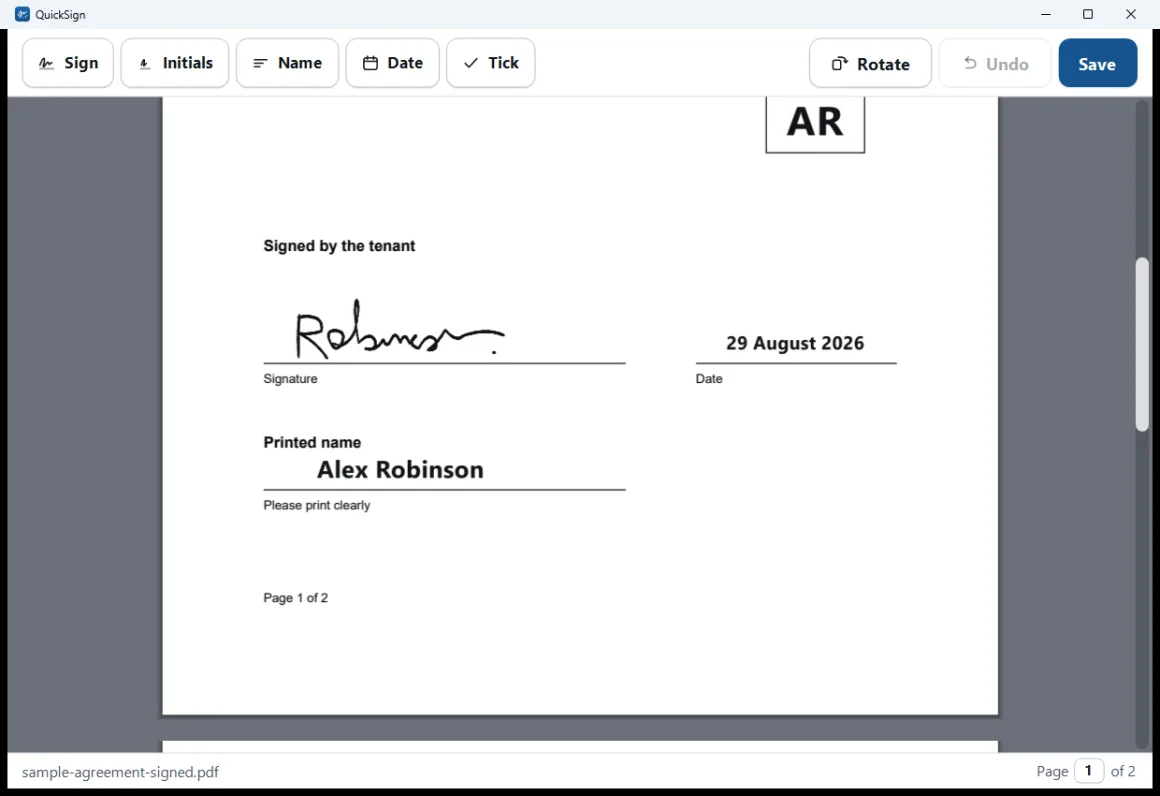
Click to place a mark, drag to move it, drag the corner to resize. Click the cross to remove, or press Delete. Undo takes back the last thing you added.
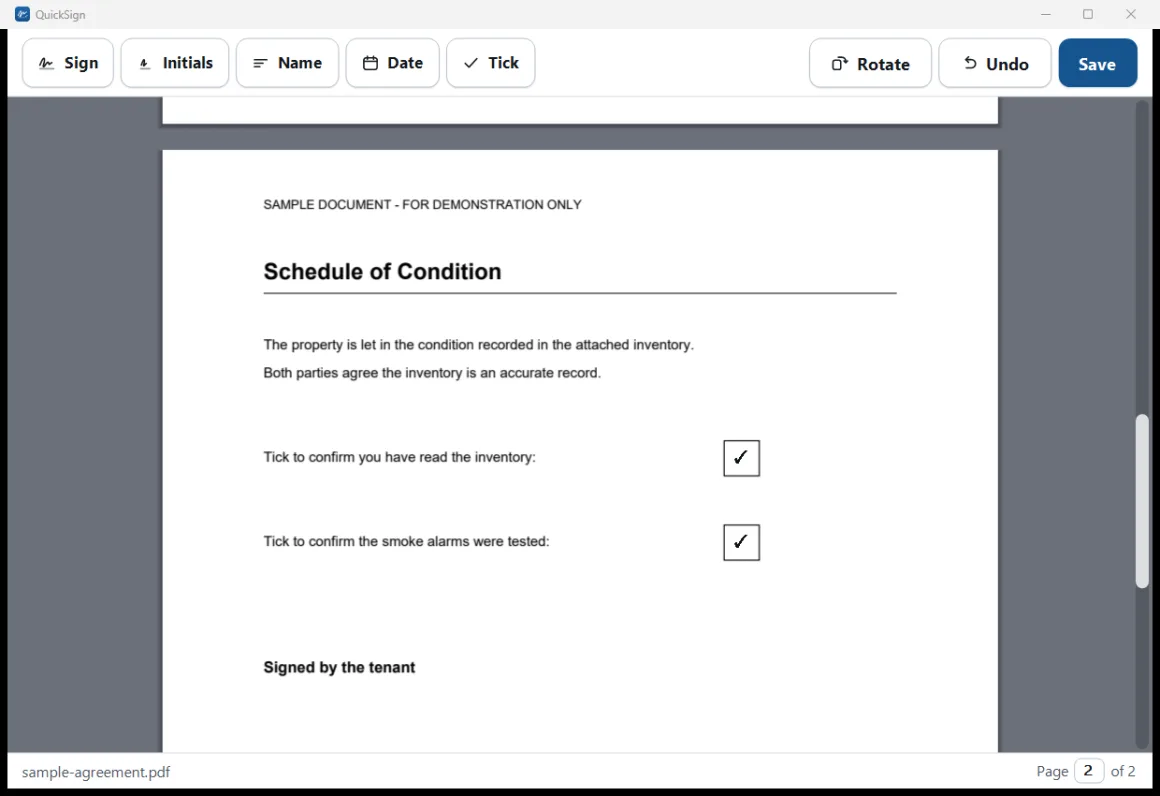
Ticks for checkboxes
Drop a tick straight into a checkbox. Rotate turns a sideways-scanned page upright. Long documents get a page counter you can type into — 76, Enter, done.
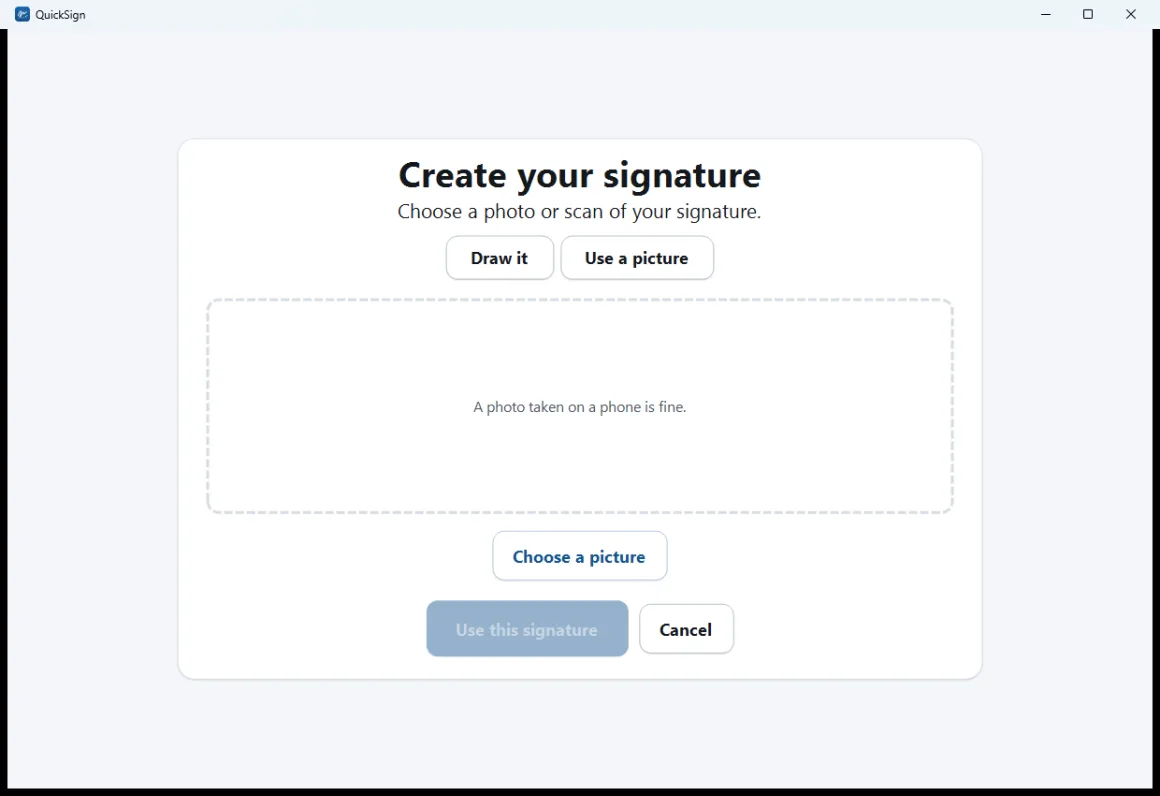
Use a photo of your real signature
Import a phone photo or scan. The paper is removed automatically, so only the ink lands on the page — no white box around it. Stored as sharp vector paths.
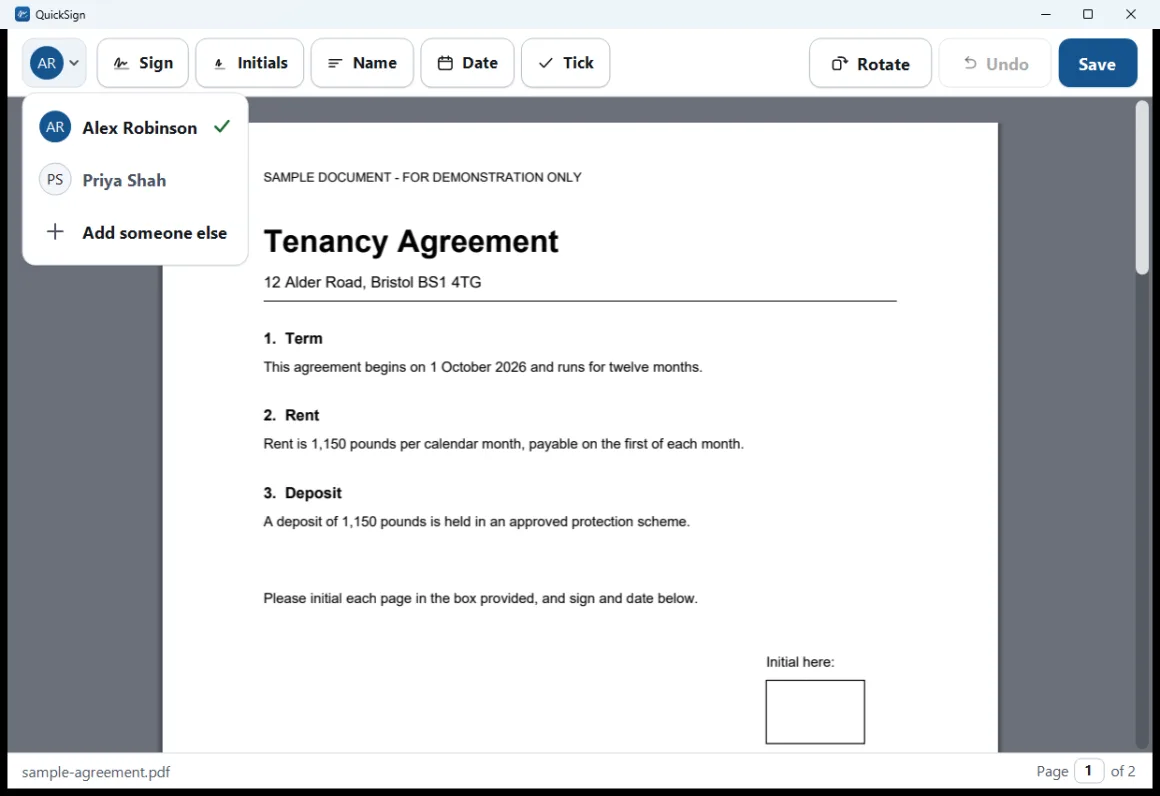
More than one person
A shared machine can hold several signers, each with their own signature, name and initials. Every mark remembers who placed it, so two people's signatures never get mixed up.
It works on the computer you already have.
Including the old one in the spare room. If it runs Windows, it runs QuickSign.
Any Windows PC
Old or new — from Windows 7 right through to Windows 11. Even a machine that struggles with newer programs.
Small and quick
About 6.7 MB — smaller than a typical phone photo. It downloads and sets itself up in moments.
Free and private
Free to download, and it works with the internet switched off. Your documents never leave your PC.
What QuickSign is, and what it isn't.
It draws a picture of your signature onto the page — exactly what most forms mean by "sign", and exactly the same as printing, signing and scanning.
What it is
- A handwritten signature placed onto a PDF.
- The same, in effect, as printing and signing by hand.
- What the overwhelming majority of documents are asking for.
What it isn't
- It does not prove who you are.
- It does not make the document tamper-evident.
- It isn't a certified or cryptographic signing service.
Why we say so plainly: this is the reason QuickSign can be a 7 MB download that works offline forever with no account. If a document needs a certified signature, it will tell you — and QuickSign isn't the tool for that one.
Straight answers, including the limits.
A tool that overclaims gets caught out. Here's what QuickSign does not do, said plainly.
What kinds of file can it sign?
Does it fill in form fields for me?
Can it email the signed file for me?
Can it edit text, redact, or reorder pages?
Does it open password-protected PDFs?
Is there a Mac version?
Where are my signature and details kept?
Windows shows a warning the first time I run it. Is that normal?
Download QuickSign for Windows.
Quick and simple to set up. Download it, open it, and follow the short prompts — you'll be signing in under a minute.
100% free, forever — no trial, no adverts, nothing to buy later. Works on any Windows PC, from Windows 7 through to Windows 11.
-
1
Download it
One small download. Click the button and save the file.
-
2
Open it and follow the prompts
A short, familiar setup — just click through. There's nothing complicated to decide.
-
3
Start signing
QuickSign opens ready to go. Open the PDF you were sent and place your signature. You can remove QuickSign later in the usual way, any time.